
Flowfile 0.16: Gates, Alerts, and a Warm Worker Pool
A Gate node that skips an entire branch, alerts when a scheduled run fails at 2am, and a worker pool that stops booting a fresh interpreter for every step.
Say you have a nightly refresh where the last step should only run on the first of the month. Flowfile had two ways to say that, and both were bad. You could split it into two flows and schedule them separately, which means maintaining two flows. Or you could put a Filter in front of the write and let it write an empty table on the other thirty days — which works, but a run that writes zero rows looks exactly like a broken pipeline when you scroll through the run history a week later.
The v0.16.0 release goes at that scenario from both ends. A new Gate node lets the flow say “only on the first” directly — the rest of the branch simply doesn’t run, and the run stays green. And since a nightly refresh runs while nobody’s watching, the release also adds alerting: a scheduled flow can now post to Slack, Discord, Teams, or any webhook when it fails.
The rest of the release points the same direction, running flows rather than building them: a worker pool that stops paying process startup on every offloaded node, folder reads on the file readers, and a learning mode in the browser build.
The Gate node
Gate passes its input through untouched and decides whether anything downstream of it runs. While the condition holds, nothing special happens. When it doesn’t, the gate itself still succeeds and everything after it is skipped: those nodes get a hollow grey ring, the run report lists them as Skipped with no runtime, and the flow stays green. That last part was deliberate. The alternative, treating “condition not met” as a failure, would make a month-end flow red thirty days out of thirty-one. A source above the gate also finishes its normal post-run work, so a Kafka source commits its offsets even when the branch below it didn’t run.
The condition comes from one of two places. A flow parameter: pick the parameter, an operator, and a value. Parameter conditions resolve before the run starts, so the plan knows which branches are live up front, and you can flip them from the command line with flowfile run flow my_flow.yaml --param env=prod. Or a formula: the same expression language as the Filter node’s advanced mode, used as a row predicate. The gate opens if at least one row matches. By default the formula reads the gate’s own input, but there’s a small control pip on the bottom edge of the node, and anything you wire into it becomes the frame the formula reads instead. Wire in a Group By that computes a null rate and the branch only runs when [null_rate] < 0.05 — a data-quality gate in two nodes.
There’s also an Add an else output checkbox that gives the gate a second exit. One condition, two branches, exactly one of them runs. Put a subflow behind each exit and you have a dispatcher.
Gates in the code export
Gates survive code export in all three targets — Polars, FlowFrame, and standalone project. Here’s a month-end rollup: order data and a region table coming in, a gate on the first of the month, and the whole rollup — filter out cancelled orders, derive the month, join, group, sort, write — behind the then-output, with Explore data on the else.
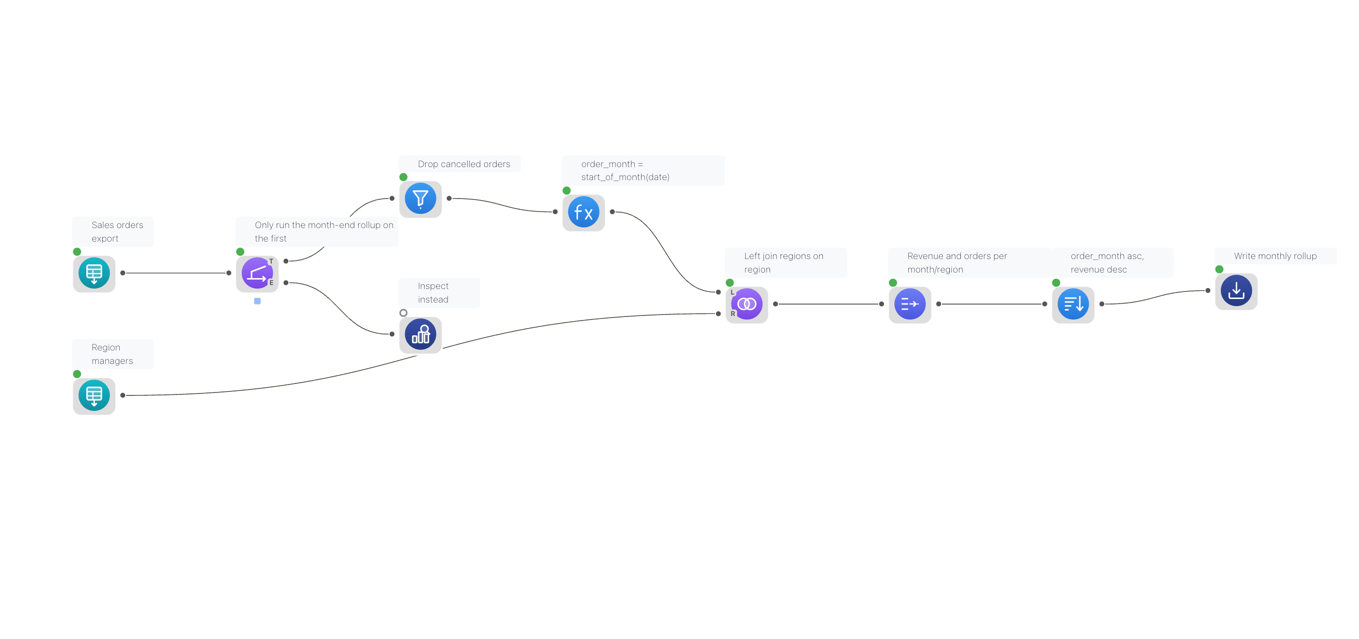
Exported to Polars, it comes out as:
from polars_expr_transformer.process.polars_expr_transformer import simple_function_to_expr
import polars as pl


def _flowfile_gate_formula_matches(df, predicate):
    """True when at least one row satisfies the gate's formula predicate."""
    frame = df.lazy() if isinstance(df, pl.DataFrame) else df
    return frame.filter(predicate).head(1).collect().height > 0


def run_etl_pipeline():
    """
    ETL Pipeline: monthly_sales_rollup
    Generated from Flowfile
    """

    _gate_2_open = False
    sorted_summary = pl.LazyFrame(schema={'order_month': pl.Date, 'region': pl.String, 'manager': pl.String, 'revenue': pl.Float64, 'orders': pl.Int64})

    sales_orders = pl.scan_csv(
        "data/sales.csv",
        separator=",",
        has_header=True,
        ignore_errors=False,
        encoding="utf8-lossy",
        skip_rows=0,
    )

    regions = pl.scan_csv(
        "data/regions.csv",
        separator=",",
        has_header=True,
        ignore_errors=False,
        encoding="utf8-lossy",
        skip_rows=0,
    )

    _gate_2_open = _flowfile_gate_formula_matches(sales_orders, simple_function_to_expr("day(today()) = 1"))

    if _gate_2_open:
        completed_only = sales_orders.filter(pl.col("status") != "cancelled")
    else:
        explore_sales = sales_orders

    if _gate_2_open:
        with_month = completed_only.with_columns([(pl.col("date").cast(pl.Utf8).str.to_date().dt.month_start()).alias("order_month").cast(pl.Date)])

        with_manager = with_month.join(
                regions,
                left_on=['region'],
                right_on=['region'],
                how="left"
            )

        monthly_summary = with_manager.group_by(['order_month', 'region', 'manager']).agg([
            pl.col("amount").sum().alias("revenue"),
            pl.col("order_id").count().alias("orders"),
        ])

        sorted_summary = monthly_summary.sort(["order_month", "revenue"], descending=[False, True])

        sorted_summary.sink_parquet("data/monthly_rollup.parquet")

    return sorted_summary


if __name__ == "__main__":
    pipeline_output = run_etl_pipeline()
A few things to notice. The variable names are the node names from the canvas. Both scan_csv calls sit outside the if — a gate only stops what’s downstream of it, and neither read is, so the regions table gets scanned whether the rollup runs or not. The formula can’t be evaluated until the run happens, so the export carries a small probe, _flowfile_gate_formula_matches, and the branches run behind a plain if on its answer. The Explore branch gets a real else, exporting as a bare passthrough since exploring is a canvas surface; the rest of the chain gets its own if block, because the generator only fuses an if/else where the two sides are exact complements. And sorted_summary is pre-seeded as an empty frame with the right schema, so the function still returns something sane on the thirty days the gate is closed.
Run this on the first of the month and the parquet gets written — twelve rows, one per region per month. Any other day, the whole rollup is skipped and the script finishes cleanly, which is the same decision the engine makes on the canvas.
A gate on a flow parameter is simpler. Parameters resolve before the run, so they become keyword arguments on the generated function, and the condition compiles down to a plain if over them — no probe needed.
This is exactly the kind of feature where the canvas and the generated code could quietly drift apart, which is why the code generator learned about gates in the same release rather than later.
Alerts for scheduled runs
The other half of running flows is finding out when they break. Until now, that meant opening the app and checking the run history.
Scheduled runs can now post to Slack, Discord, Microsoft Teams, or any HTTPS webhook — on failure, on recovery after a failure, on success, or when the scheduler closes a run as orphaned because its process died without reporting back. It’s managed from a new Alerts tab in the Catalog. A channel is a webhook destination; an alert is a rule saying which outcomes go to which channel, for one schedule or for everything you own (per-flow rules exist too, through the API). Failure and recovery alerts are on by default. Success is off by default, because a channel that pings for every green run is a channel everyone mutes within a week.
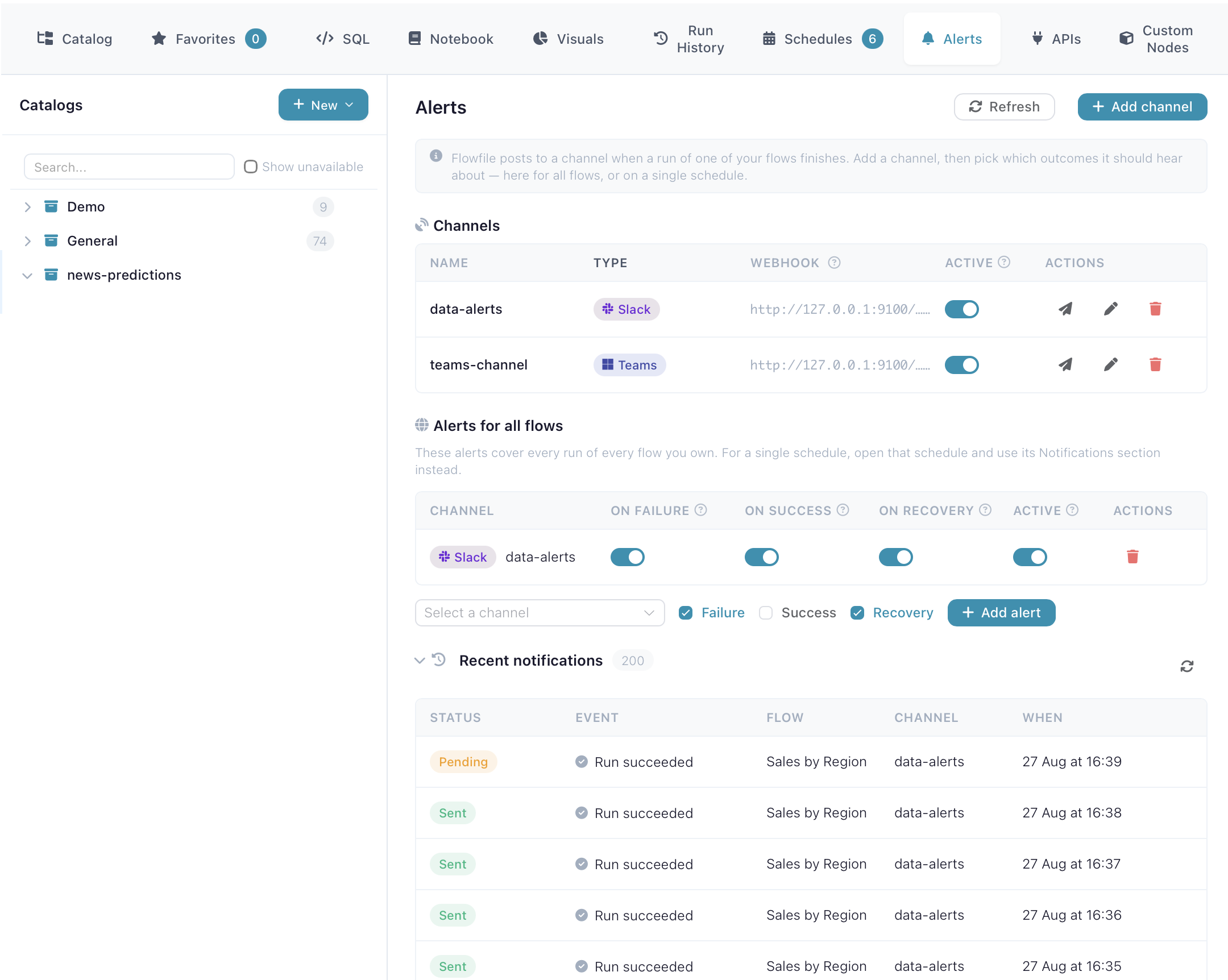
Webhooks are easy to do badly, so a few decisions here were made carefully. Messages carry run metadata only: flow name, schedule, duration, which nodes failed and their errors, truncated. Row data never goes out. The webhook URL is stored encrypted like any other Flowfile secret and shown masked after saving, because anyone holding that URL can post to your channel. URLs that resolve to private or loopback addresses are refused by default; there’s an environment variable for when your webhook target really does live inside your network. Failed deliveries retry at 1, 5, 15, and 60 minutes, up to five attempts, and every attempt shows up under Recent notifications. A Send test button lets you check the wiring before trusting it with a real failure.
Runs you start from the canvas never alert — you’re sitting right there. Cancelling a run yourself doesn’t fire a failure alert either. The feature needs the desktop or server build; the browser build has no scheduler, so there’s nothing to alert on.
The warm worker pool
Flowfile runs heavy compute in a separate worker process, and until now that worker spawned a fresh child for every offloaded node: interpreter boot, imports, then your actual work. That costs roughly 0.2 seconds per task on macOS and 0.4–0.7 on Windows, and you pay it again every time you re-run to check a change.
The worker can now keep children alive between tasks. On Windows, where spawning hurts most, the pool is on by default with four warm processes, and the difference is visible — clicking around the designer used to have a noticeable pause. On macOS and Linux it’s off by default; turn it on with FLOWFILE_WORKER_POOL_SIZE, or from the new Performance tab on the Compute page (admin-only — the old Kernel Manager is now the Kernels tab next to it).
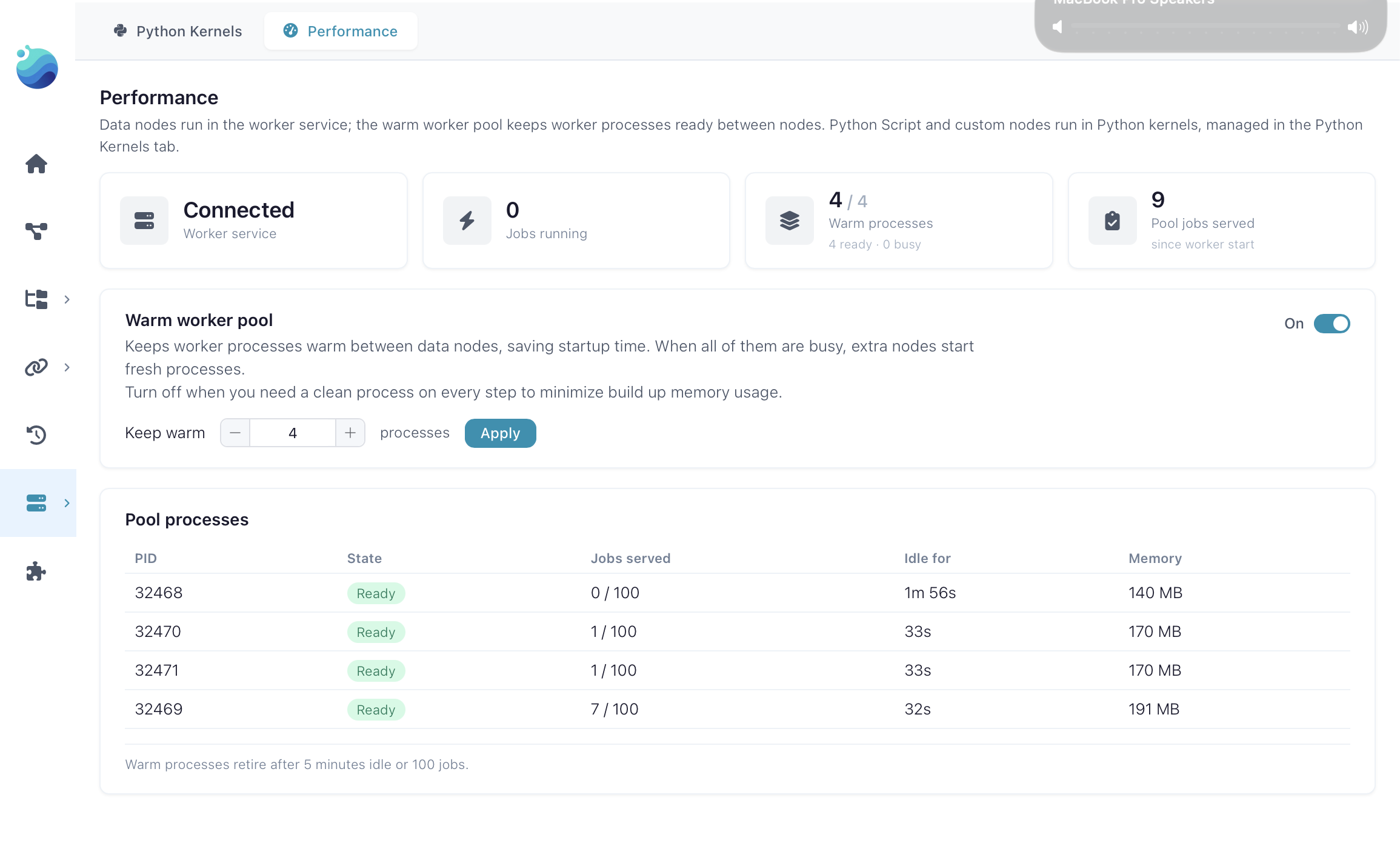
Warm processes retire after five minutes idle or a hundred jobs. If the pool is off, full, or the task isn’t poolable, execution falls back to the spawn-per-task path that was already there. Cancelling still kills the child outright, dataset and all — that isolation is the reason the worker exists, and the pool doesn’t change it.
Reading a folder of files
read_csv, read_parquet and read_ipc (and their scan_* aliases) can now take a directory and read every matching file as one table. Detection is automatic: an existing directory, a trailing separator, or a glob character anywhere in the path switches scan_mode to directory. include_file_paths="source_file" adds a column with each row’s origin file, which is the first thing you reach for when one file out of thirty is bad. A bare directory expands to a recursive, case-insensitive **/*.csv; an explicit pattern is used as written; a pattern that matches nothing raises an error instead of handing you an empty frame.
For Parquet and Arrow IPC, column names and dtypes are compared across all matched files before anything is read, and a mismatch fails with the name of the file that disagrees. The limits: CSV, Parquet and IPC only — no Excel, ndjson or Avro — and CSV has to be UTF-8. The visual Read node has the same option under Source, and the cloud readers take the same parameter.
Learning mode in the browser
Flowfile Lite, the browser build, got a Learning mode this release, behind a graduation-cap toggle. It lives in the browser build on purpose. Lite is the version of Flowfile that needs nothing installed — you open a tab and start building — which makes it the version people meet first, often while they’re still working out what a pipeline even is, or whether they want to learn Python at all. That’s the audience this is for.
Turn it on and your flow renders as a step-by-step script in two spellings: plain Python, where every table is a list of dicts and every node an explicit loop, and Polars, where the same steps are one-liners under the same variable names. Stepping through the numbered chips highlights the matching node on the canvas, and a Data tab shows the rows going in and out of each step. The script is editable and runs in the same in-browser Python the canvas uses, and a compare-to-canvas check diffs the output and points at the first cell that differs.
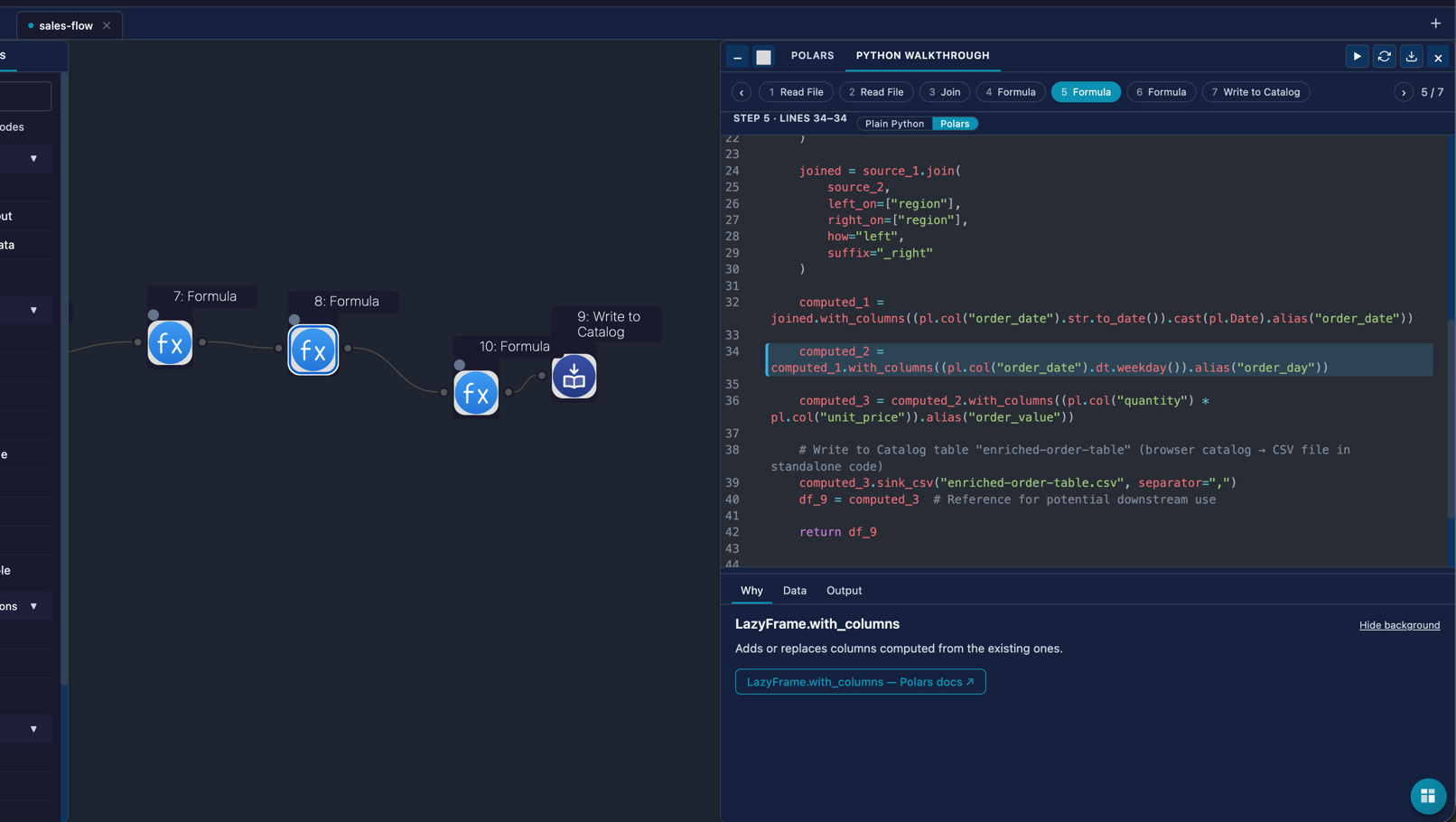
It’s a teaching output, not a production one. Nodes driven by the formula language have no honest loop equivalent, so those steps are marked as done by the canvas and the rows pass through — the script still runs end to end.
One more browser change, and this one isn’t in the release notes: a flow built in the browser now downloads as a flow file (YAML or JSON) that opens and runs in the desktop and pip builds, producing the same rows. There’s a translation layer on the download path, and differential tests that open the exported file in the real flowfile_core and compare its rows against what the browser produced. Before this, a flow sketched at demo.flowfile.org stayed in the browser. Now you can take it with you.
Flowfile is open source (MIT) and runs from a single pip install flowfile, the desktop app, or Docker. The repository has the code, and the v0.16.0 release notes have the full changelog. And if you’re wondering what happened in the ten releases before this one: that post goes out today too.
Related reads: Abstraction Is a Zoom Level on a DAG You Already Have for why control flow had to land on both sides of the canvas/code line at once, Export a Flow as a Standalone Python Project for what the generated if blocks sit inside, Faster Worker Runs for the two-process split the warm pool is built on, and Your Lineage Graph Should Run Your Pipelines for the scheduler these alerts are watching.