
Schema as a Contract
Every Flowfile node has a schema validation toggle. Turn it on, declare the columns you expect, pick a behaviour for what happens when the source drifts.
TL;DR. Every node in Flowfile has a schema validation toggle in its settings panel. Turn it on, declare the columns the rest of the flow depends on, pick a behaviour for what happens when reality doesn’t match (Strict, Flexible, Permissive, or Validate), and optionally turn on Type Checking. The pipeline either fails loudly at the right place or quietly normalises the input — your choice, set per node, no separate validation node required.
The bug that doesn’t crash
Someone owns the source CSV. They rename a column — revenue_eur becomes rev_eur because they finally got around to standardising the names. They tell their team. They don’t tell yours, because they don’t know yours exists.
Your pipeline reads the CSV. It runs. Polars happily reads any columns it finds. The downstream filter on revenue_eur produces zero matches because the column is gone, and the select either errors or — depending on the path — silently produces nulls. A few weeks later someone notices the revenue chart is flat.
This pattern repeats everywhere data crosses an organisational boundary. A vendor extends their CSV. An engineer changes a type from Float64 to Decimal. A flag column gains a third value. The pipeline doesn’t crash. The output gets quietly wrong, which is worse.
The cheapest layer to catch this at is the structural one — column names, types, presence. That layer is what schema validation owns.
How you actually use it
Open the settings panel of any node. There’s a section labelled Enable Schema Validation with a toggle. Flip it on and the rest of the panel unfolds.
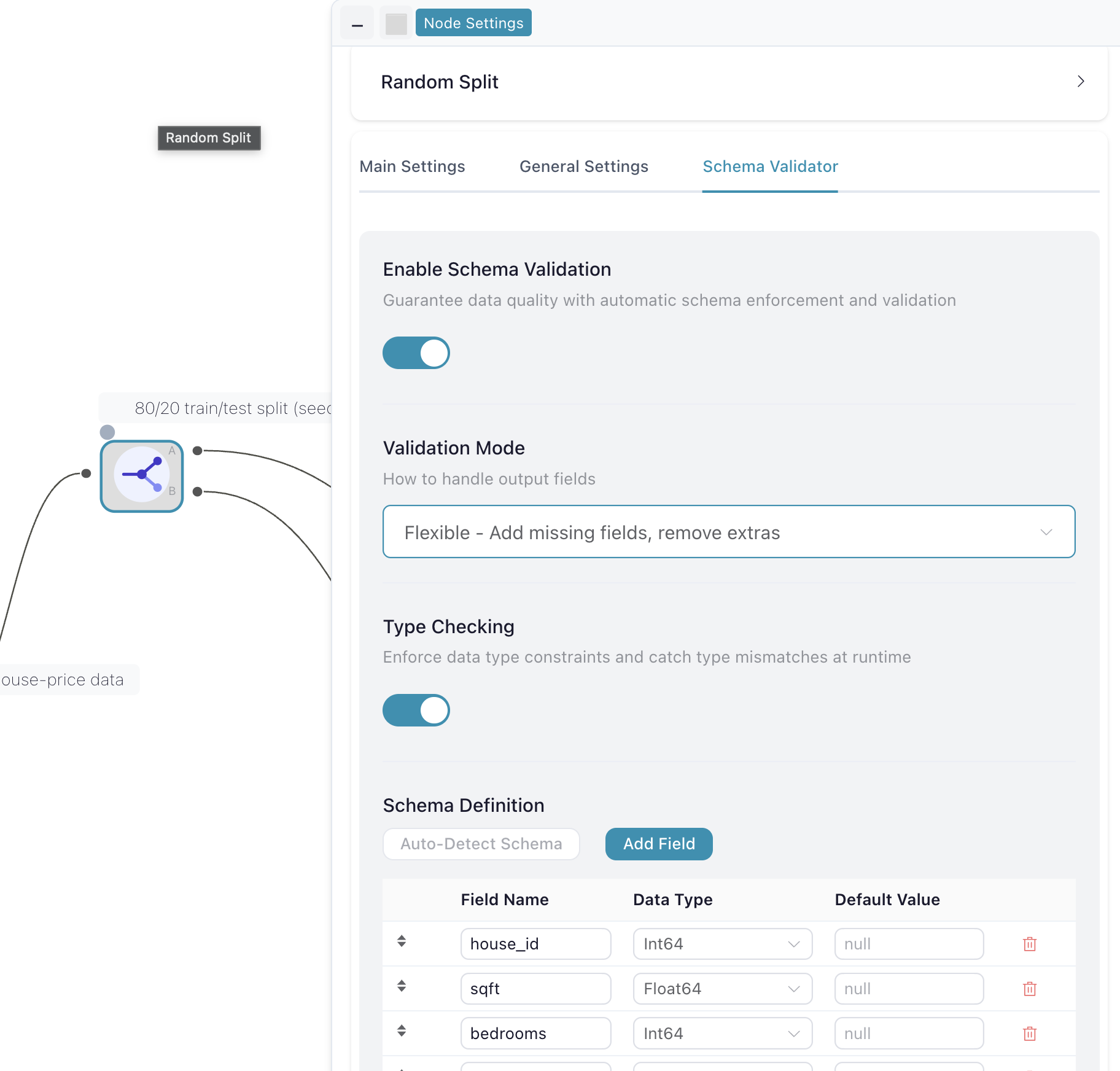
Validation Mode is the behaviour dropdown. Four options, each useful in a different context:
- Strict — Keep only defined fields. The output is exactly the columns you declared. Anything else the source happens to send is dropped. Useful when you’ve promised a downstream consumer a precise output shape.
- Flexible — Add missing fields, remove extras. Missing columns are filled from the default values you configured; extras are dropped. The output shape is guaranteed regardless of what the source sent.
- Permissive — Add missing fields, keep all extras. Same as Flexible, but new columns the source added go through too. Documented columns are guaranteed to be there; the schema can grow.
- Validate — Error if any fields are missing. The strict production option. If the source no longer has a declared column, the run aborts with the column name in the error.
Type Checking is a separate toggle just below. When on, the validator complains if the actual data type doesn’t match the declared one — for example, the column was supposed to be a date and arrives as a string, or a number arrives as text because someone opened the file in Excel and saved it. No silent coercion. Off, the validator is name-based only.
Schema Definition is the field list. Each row has a name, a data type, and an optional default value. There are two ways to fill it in:
- Auto-Detect Schema — click the button and the panel populates from whatever the node is currently outputting. Fastest path: run the node once, capture the shape, then choose a behaviour.
- Add Field — type the columns in by hand with their types and defaults. Useful when you’re declaring a contract before the data exists yet, or trimming an auto-detected list down to just the fields you actually depend on.
Default values get used when a field is missing from the input under Flexible or Permissive modes. Strict and Validate ignore them — Strict because it just drops missing fields silently, Validate because it errors before they’d get used.
The simplest production-safe pattern: on every input node that reads from an external source, click Auto-Detect Schema once to capture the current shape, prune to the columns the rest of the flow actually depends on, set Validation Mode to Validate, and turn on Type Checking. The next time the source gains a column or renames one, the run aborts with a useful error message at the right node — instead of leaking nulls into a chart three weeks later.
A note before the next section: if you came here for how to use it, you’re done. Toggle it on, declare your fields, pick a mode, you’re set. Below is for anyone curious about how it actually works underneath.
How it’s wired underneath
Schema validation is a property of every node, not a separate node type. One small Pydantic config does both halves of the work — driving the live schema preview as you edit and enforcing the contract at runtime. The four UI labels map to four backend modes:
# flowfile_core/flowfile_core/schemas/input_schema.py

class OutputFieldConfig(BaseModel):
    enabled: bool = False
    validation_mode_behavior: Literal[
        "select_only",            # UI: Strict — keep only defined fields
        "add_missing",            # UI: Flexible — add missing, remove extras
        "add_missing_keep_extra", # UI: Permissive — add missing, keep extras
        "raise_on_missing",       # UI: Validate — error if missing
    ] = "select_only"
    fields: list[OutputFieldInfo] = Field(default_factory=list)
    validate_data_types: bool = False
This sits as an optional field on NodeBase, the parent class every node inherits from. So the same generic settings panel can render the same validation section on any node — input, transformation, write — without each one needing its own implementation.
The enforcement side is one function per mode. The Validate mode is the most visceral one — here’s the entire thing:
# flowfile_core/flowfile/flow_node/output_field_config_applier.py

def _apply_raise_on_missing(engine, fields):
    cols = [f.name for f in fields]
    missing_columns = set(cols) - set(engine.columns)
    if missing_columns:
        raise ValueError(
            f"Missing required columns: {', '.join(sorted(missing_columns))}"
        )
    return engine.select_in_order(fields)
Six lines. When the source CSV ships without customer_id, this is what the run prints and stops on:
ValueError: Missing required columns: customer_idSame column name you typed into the Schema Definition panel. Same node that produced it. The error names the thing that broke, in the words you used to declare it.
The other modes are the same shape with different intent: add_missing builds the missing columns from the configured defaults and drops anything extra; add_missing_keep_extra does the same but lets new columns ride along; select_only just projects the declared columns and skips missing ones in silence. Same Pydantic config drives all four. Same source of truth drives the live schema preview before you ever click Run.
What this isn’t
Schema validation is in the installed Flowfile — the desktop app, the Docker stack, or pip install flowfile. It’s not in the WASM demo at demo.flowfile.org. The WASM build runs a lightweight subset of nodes for poking around in-browser, and the validation infrastructure isn’t wired through that path. The demo is for exploring the shape of the tool; installed Flowfile is where you’d actually run a flow you cared about being right.
One thing to take from this
If you run pipelines against sources you don’t fully control, the workflow is short: open the input node, toggle on Enable Schema Validation, click Auto-Detect Schema, prune to the columns you actually need, set Validation Mode to Validate, turn on Type Checking. A minute of configuration that buys you a loud failure at exactly the place that’s most useful. The alternative is a chart that goes quietly wrong, which is the bug that costs the most to debug.
Release notes are on the GitHub releases page. The schema reference is in the docs.
Related reads: Connections, secrets, and the catalog in Flowfile’s Python API — the other half of making a flow safe to hand to a teammate. Your lineage graph should run your pipelines — what happens after the contract holds and the flow goes on a schedule.
Frequently asked questions
- How do I enable schema validation on a node in Flowfile?
- Open the node's settings panel and toggle Enable Schema Validation. Pick a Validation Mode (Strict, Flexible, Permissive, or Validate), optionally turn on Type Checking, and declare the columns under Schema Definition — either by clicking Auto-Detect Schema to infer them from the current output, or by adding fields manually with names, types, and optional default values.
- What do the four validation modes mean?
- Strict — Keep only defined fields: output is exactly the columns you declared, extras dropped. Flexible — Add missing fields, remove extras: missing columns are filled from defaults, extras dropped, output shape guaranteed. Permissive — Add missing fields, keep all extras: same as Flexible but new columns from the source pass through. Validate — Error if any fields are missing: the run aborts with a named error if the source no longer has a declared column. The strict production-safe choice is usually Validate.
- Is schema validation available in the WASM demo?
- Not yet. The WASM build at demo.flowfile.org runs a lightweight subset of nodes for in-browser exploration, and the validation infrastructure isn't wired through that path. To use schema validation you need the installed version — the desktop app, the Docker stack, or
pip install flowfile. - Should I enable this on every node, or just inputs?
- Mostly just on input nodes — the place where data crosses an organisational boundary you don't control. That's where drift originates, and catching it there gives you the cleanest error message. Enabling it on transformation nodes is fine but rarely useful: you control those, so the schema is whatever the upstream data plus your transformation produces. Save the loud guard for the place where loudness actually buys you something.