
Automate Your Excel Workflows Without Writing Code
If you rebuild the same Excel report every week, you don't need Python. Here's how visual data pipelines turn that work into a repeatable, one-click process.
TL;DR. If you rebuild the same Excel report every Monday — pulling in the new export, applying the same filters, looking up the same lists, copying the same pivot — you are doing the work of a small program by hand. A visual data pipeline tool lets you build that program once, click “Run”, and ship the result. You don’t have to learn Python. You don’t have to leave your laptop. And it scales from 1,000 rows to 10 million without changing how you work.
Why Excel breaks down on repeat work
Excel is the best tool ever invented for exploring a single dataset. It is one of the worst tools ever invented for repeating the same exploration on a different dataset next week.
Every Excel-power-user has lived this loop:
- Get the new export from the source system.
- Open last week’s workbook. Make a copy. Rename it.
- Paste in the new data, hope the columns line up.
- Re-run the VLOOKUPs against the latest reference list.
- Refresh the pivot. Find that one column with
#N/Aand figure out why. - Fix the formatting. Email it.
That loop has nothing to do with thinking about your data. It is plumbing. Every Monday morning you are rebuilding the same plumbing by hand.
What a “data pipeline” actually is, in plain English
A data pipeline is a saved recipe. You define the steps once — load the file, drop these columns, fill in missing values, join against the customer list, group by region, save as Excel — and the tool remembers them. Next Monday, you swap in the new file and click one button. The whole thing runs in seconds.
If you have ever recorded an Excel macro, you already understand the idea. The difference is that a real pipeline tool gives you a visual canvas where each step is a labeled box you can rearrange, fork, or branch — and it doesn’t fall apart the moment your column order changes or someone adds a new sheet.
The three habits Excel users replace first
When Excel power users move to a visual pipeline, three habits go away almost immediately. They are the three habits that quietly cost the most time.
1. The VLOOKUP / XLOOKUP chain
In Excel, joining a sales export to a customer reference table means dragging a formula down 80,000 rows and praying the keys match. Pipelines have a single Join node: pick the left column, pick the right column, choose inner / left / right / outer, done. The same node works whether you have 80 rows or 80 million. There is also a Fuzzy Match node for the common case where the keys are almost the same — Acme Corp vs ACME Corporation — and you currently fix those by hand.
2. The “Find & Replace dance”
Cleaning categorical values in Excel — turning cust, Cust, CUSTOMER all into Customer — usually means running Find & Replace four times and missing the fifth. In a pipeline you describe the rule once in a Formula node and it applies to every row, every run, forever.
3. The pivot-and-paste cycle
Pivot tables are wonderful until you need yesterday’s pivot in today’s report. A Group By node defines the aggregation as a saved step. Re-running it against new data takes one click. You will never again “lose” a pivot because someone overwrote the source range.
A concrete example: the Monday sales report
Picture the workflow most teams have somewhere:
| Step | Excel today | Pipeline tomorrow |
|---|---|---|
| Load the new sales export | File → Open → confirm wizard | Read Data node, points at the folder |
Drop internal_id, legacy_flag | Right-click → Delete column ×2 | Select node, untick the columns once |
| Look up region from customer list | =VLOOKUP(...) × 80k rows | Join node, key = customer_id |
| Filter to the current quarter | Manual filter | Filter node, condition saved |
| Group by region & product | Pivot table, redo the layout | Group By node |
| Export to a formatted Excel file | Save As → choose format | Write Data node, .xlsx |
Built once, the whole thing becomes a single canvas. Next Monday you drop in the new file, click Run, and the report writes itself in the time it takes to pour a coffee.
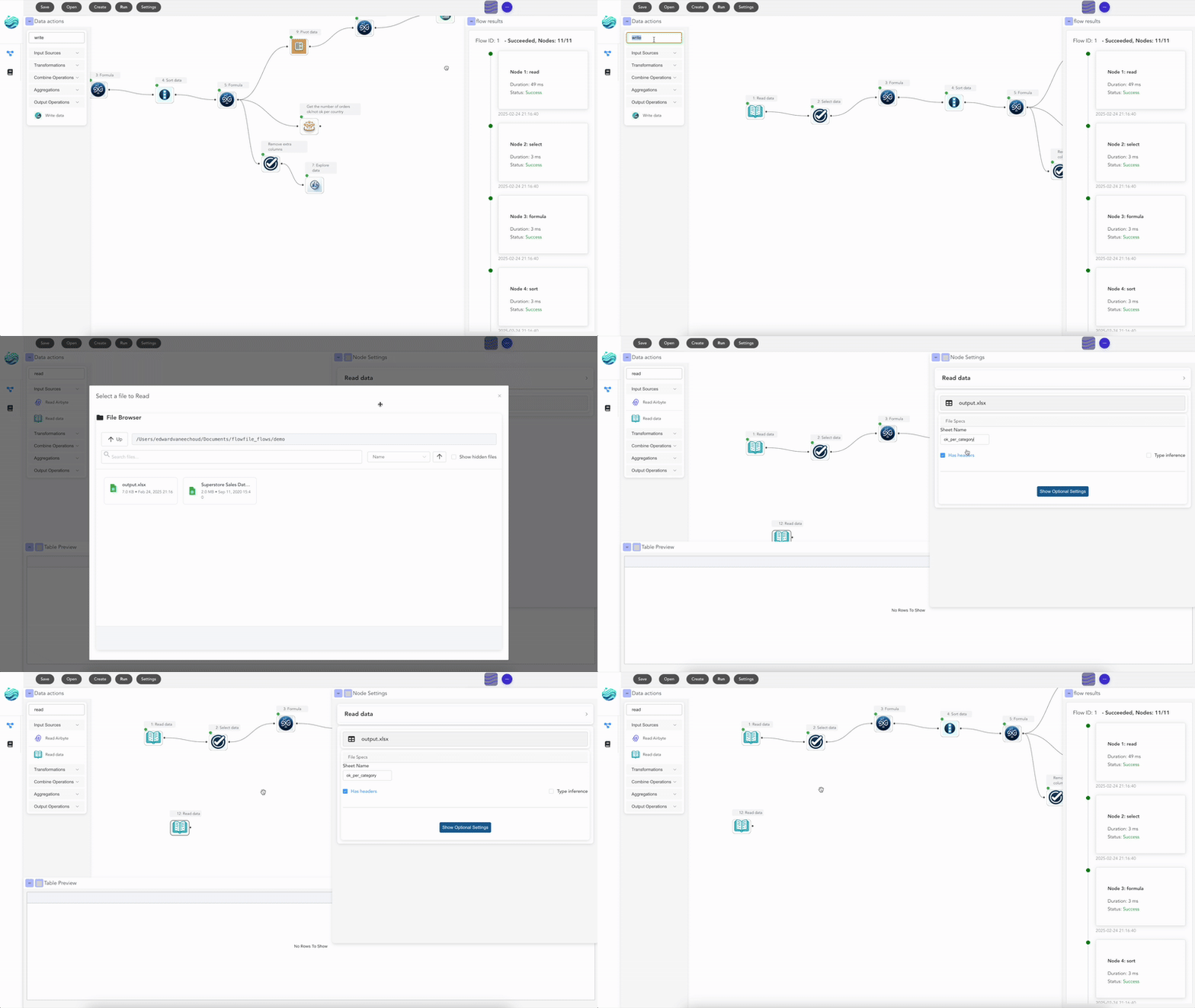
What you keep from Excel
This is the part most Excel users don’t expect: you keep almost everything. Your data still lives in spreadsheets. The output is still .xlsx. The intermediate results look like grids of cells. You can preview every node and see exactly which rows came out the other side. The thing you give up is the manual part — and the thing you gain is the ability to point the same recipe at a different file every week.
You also gain something Excel never gave you: a permanent record of how the report was built. Six months from now, when someone asks “where did this number come from?”, you will be able to point at the actual transformation, not at a 200-line cell formula nobody remembers writing.
Where to start with Flowfile
Flowfile is a free, local, open-source visual pipeline tool. You can install it on your laptop, point it at your existing Excel files, and start automating one report at a time. Nothing leaves your machine.
If you want to feel the canvas before installing anything, the browser demo runs entirely in your browser — no signup, no upload — using a small set of starter nodes.
A good first project: pick the report you re-do every week. Build it as a pipeline once. Set a reminder to run it next Monday. After three runs, you’ll wonder how you ever did it the old way.
Want to keep going? Read What Is a Data Pipeline? A Plain-English Guide for the foundational concepts, or jump to Why Your Data Should Stay on Your Laptop for how local-first tools change the privacy story for analysts.
Frequently asked questions
- Do I need to know Python to automate my Excel workflows?
- No. Visual pipeline tools like Flowfile let you do the entire transformation by dragging and connecting nodes. You only touch code if you want to.
- Will this work with my existing .xlsx files?
- Yes. Flowfile reads .xls and .xlsx directly, including multi-sheet workbooks — pick the file, pick the sheet, you're in. It also writes back to .xlsx, so the people downstream of you keep getting the same Excel files they're used to.
- What if my data is too big for Excel?
- That's exactly the moment a pipeline tool starts to win. Excel slows to a crawl past a few hundred thousand rows; Flowfile uses Polars under the hood, which can stream through millions of rows in seconds — without you having to know what Polars is.
- Does my data leave my computer?
- No. Flowfile runs locally by default. Your spreadsheets, intermediate results, and outputs stay on your machine unless you explicitly send them to a cloud service.
- Can I share my pipeline with a teammate?
- Yes. Pipelines are saved as a single file you can email, drop into Git, or open on any machine that has Flowfile installed. The same file works on Windows, macOS, and Linux.